 c2cd615824
The site had drifted from the product. Every screenshot predated the
v0.5.0 UI redesign, the reading experience shipped no search and no
syntax highlighting, and a third of the pages were internal process
artefacts — migration task lists addressed to agentic workers, a
release runbook, a proposal marked "historical".

Reorganise around the only two people who read this: someone getting
the desktop app running for the first time, and someone reading the
source. Five sections replace nine — start / desktop / im / cli /
internals — and the pages that served neither reader are gone.

Site rewrite:

- Palette lifted from the desktop app's 「纸·墨·印」 themes, so the
  site and the product read as one thing. Light mirrors 纯白, dark
  mirrors 墨夜, and dark mode exists at all now.
- Fonts are self-hosted. The old @import from Google Fonts is
  unreachable from mainland China, which left every heading in a
  fallback serif; it also only requested weight 600 while the CSS
  asked for 900, so Latin and CJK in the same heading disagreed.
- Docs were shipped as one 968KB manifest downloaded on every page
  view. Split into a 32KB index plus one lazily imported chunk per
  page; the entry bundle is now 101KB gzipped.
- Add search, syntax highlighting, per-route meta with canonical and
  hreflang, a sitemap, and an error boundary. Replace the 44vh
  mobile sidebar with a drawer.
- Image dimensions are read at build time and written into the tag,
  so lazy images reserve their space instead of collapsing.

Screenshots are recaptured from a real v0.5.0 build against a clean
demo project, with tokens, QR codes and paired accounts redacted.
The previous set is deleted rather than kept alongside.

Routes follow file paths, so the restructure would have broken every
inbound link; 37 old paths redirect, in both languages. The PR policy
gate and CODEOWNERS also hardcoded docs/guide/contributing.md.

Verified: check:docs 78 pages / 323 links / 0 problems, check:policy
127 pass. Walked every route at 1440 and 390 in both themes for
overflow, contrast, keyboard reachability and focus management.
5.9 KiB
| title | nav_title | description | order |
|---|---|---|---|
| IM 接入 | 总览 | 把飞书、Telegram、微信、钉钉或 WhatsApp 的私聊接到桌面端,用手机继续同一条会话。 | 0 |
IM 接入
桌面端跑着的会话,可以接到你手机上的 IM 里。绑定之后,在飞书、Telegram、微信、钉钉或 WhatsApp 的私聊里发一句话,就是在驱动本机的 Claude Code:出门前让它跑一个长任务,路上用手机看进度、批权限、换项目。
对话对象是你自己绑定的机器人或账号,消息只经过你本机的桌面端,没有中间服务器托管你的代码。
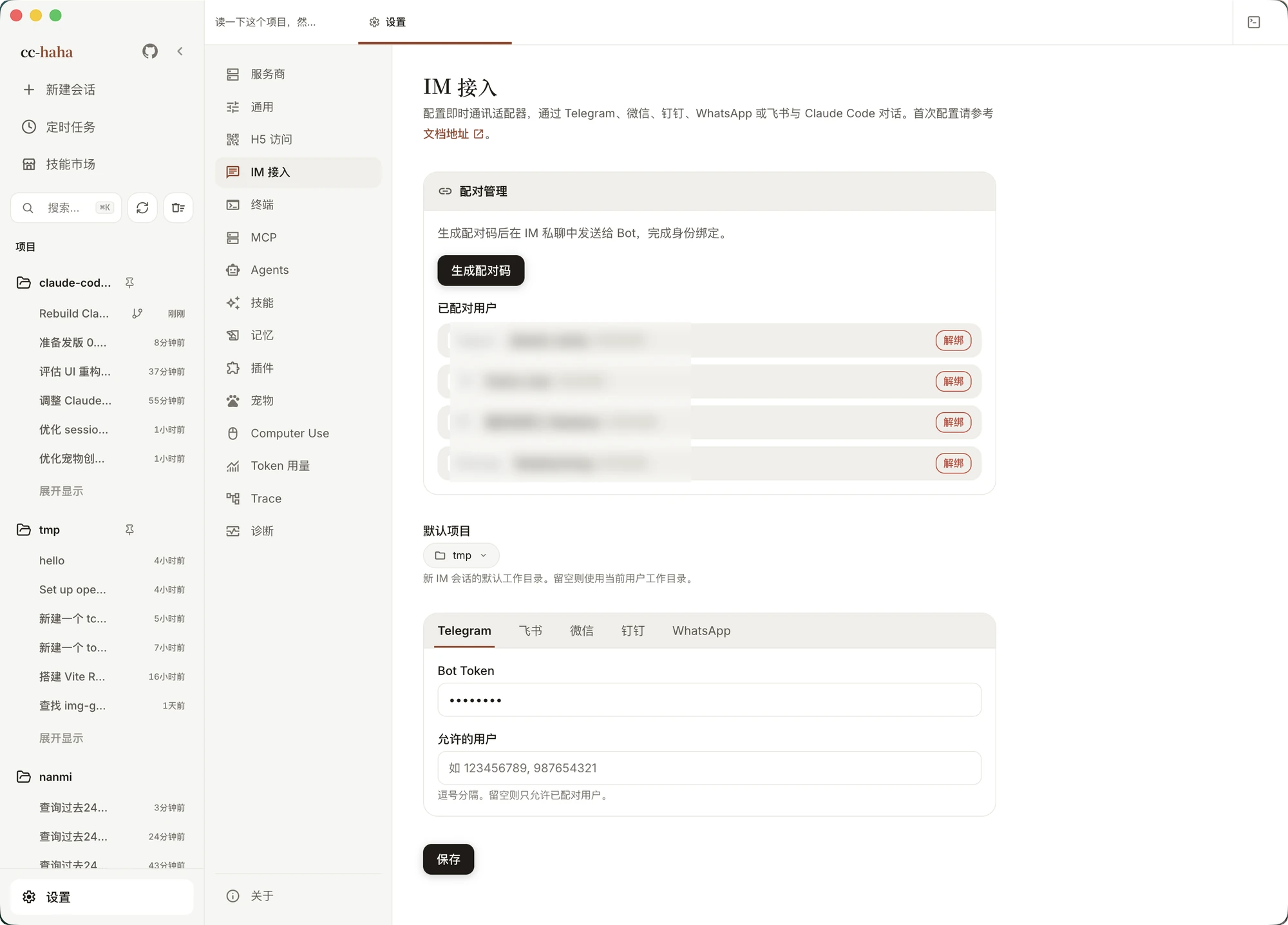
接进来之后能做什么
- 接着聊同一条会话:手机上发的消息进的是本机的 Claude Code 会话,改文件、跑命令、读代码都在你电脑上真实发生。
- 换项目:发
/projects列出最近用过的项目,回复编号或路径就切过去;/new直接开一条新会话。 - 批权限:Claude 要写文件或执行高风险命令时,会把请求推到 IM 里。飞书和钉钉是可点的卡片,Telegram 是按钮,微信和 WhatsApp 回复一条文本命令。
- 看状态、叫停:
/status看当前项目、模型和运行状态,/stop中断正在跑的这一轮。
前提是桌面端一直开着。IM 侧只是遥控器,真正干活的是你的电脑。
选哪个平台
五个平台的能力是同一套,差别在接入成本和审批体验。
| 平台 | 怎么接 | 适合谁 | 已知限制 |
|---|---|---|---|
| 飞书 | 点「一键创建飞书机器人」用官方模板建一个,回填 App ID 和 App Secret | 国内团队,想要点按钮就能批权限 | 只处理单聊,不处理群聊;改机器人菜单要去开放平台发版本 |
| Telegram | 找 @BotFather 要一个 Bot Token,粘进设置页 |
能连上 Telegram 的个人用户,接入最快 | 只处理私聊;国内网络下需要自己解决连通性 |
| 微信 | 在设置页扫码登录机器人账号 | 只想用微信、不愿再装一个 App | 只处理私聊;权限审批只能回复文本命令 |
| 钉钉 | 在设置页扫码授权,Client ID 和 Secret 自动写入 | 国内企业,钉钉是主力办公工具 | 只处理单聊;要卡片审批得额外配一个模板 ID |
| 用手机 WhatsApp 的「已关联设备」扫码 | 海外用户 | 走个人号的 Web 登录,不是官方 Cloud API;只处理个人私聊 |
拿不定主意就先接 Telegram 或飞书,两者的权限审批体验最好。
配对流程
五个平台的绑定分两层:先让桌面端拿到平台凭据,再让你这个 IM 账号本人通过配对码获得授权。第二层所有平台都一样。
- 打开「设置」→「IM 接入」。
- 在下方的平台 Tab 里完成绑定:飞书和 Telegram 填凭据,微信、钉钉、WhatsApp 扫码。
- 在「默认项目」里挑一个目录。
- 点「保存」。
- 回到顶部的「配对管理」,点「生成配对码」,拿到一枚 6 位码。
- 在对应 IM 里私聊你的机器人,把这 6 位码发过去。
- 看到配对成功提示后,直接发消息就是在跟 Claude Code 对话。
配对码 60 分钟内有效,只能用一次,重新生成后旧码立刻作废。同一枚码是平台无关的,发到哪个平台就绑哪个平台的账号。同一个用户 5 分钟内连续输错 5 次会被限流。
生成配对码和扫码绑定都会立即写入本机配置,不需要再点「保存」;App ID、Bot Token、「允许的用户」和「默认项目」这类手填内容才需要。
配对成功的账号会出现在「已配对用户」列表里,点右侧的「解绑」即可撤销,被解绑的人要重新发一枚新码。
默认项目决定它在哪干活
「默认项目」是新建 IM 会话的工作目录。填了它,手机上发的第一句话就直接在这个目录下开会话;留空的话,机器人会先把最近用过的项目列出来让你选。
同一个 IM 聊天窗口后续的消息会复用同一条会话,桌面端重启后也能接回去。想换目录发 /new,想清空上下文但保留项目发 /clear。
通用命令
各平台的入口略有差异(飞书可以把命令配成机器人菜单),但这几条到处都能用:
/help— 列出当前可用命令/status— 当前项目、模型、运行状态/projects— 列出最近项目并切换/new— 开一条新会话,可带项目编号或路径/clear— 清空上下文,保留项目绑定/stop— 停止本轮生成
微信、钉钉、飞书还支持中文别名,例如 帮助、状态、项目列表、新会话、清空、停止。
安全须知
::: warning 这是一把能改你电脑的遥控器 配对成功的 IM 账号可以让 Claude 在你本机读写文件、执行命令。只把配对码发给你自己,别在群里贴,也别把机器人凭据提交进仓库。 :::
授权规则是「允许的用户」加已配对用户取并集,两者都为空时一律拒绝。扫码绑定只是让桌面端拿到账号凭据,不等于放行这个账号的所有联系人。
平台凭据、配对状态和授权名单保存在 ~/.claude/adapters.json,聊天窗口到会话的映射保存在 ~/.claude/adapter-sessions.json。这两个文件都在本机,含有可直接操控你机器的凭据,不要外传。设置页读回配置时敏感字段会被打码。
想在手机浏览器里获得完整界面而不只是聊天,看H5 访问。