 c2cd615824
The site had drifted from the product. Every screenshot predated the
v0.5.0 UI redesign, the reading experience shipped no search and no
syntax highlighting, and a third of the pages were internal process
artefacts — migration task lists addressed to agentic workers, a
release runbook, a proposal marked "historical".

Reorganise around the only two people who read this: someone getting
the desktop app running for the first time, and someone reading the
source. Five sections replace nine — start / desktop / im / cli /
internals — and the pages that served neither reader are gone.

Site rewrite:

- Palette lifted from the desktop app's 「纸·墨·印」 themes, so the
  site and the product read as one thing. Light mirrors 纯白, dark
  mirrors 墨夜, and dark mode exists at all now.
- Fonts are self-hosted. The old @import from Google Fonts is
  unreachable from mainland China, which left every heading in a
  fallback serif; it also only requested weight 600 while the CSS
  asked for 900, so Latin and CJK in the same heading disagreed.
- Docs were shipped as one 968KB manifest downloaded on every page
  view. Split into a 32KB index plus one lazily imported chunk per
  page; the entry bundle is now 101KB gzipped.
- Add search, syntax highlighting, per-route meta with canonical and
  hreflang, a sitemap, and an error boundary. Replace the 44vh
  mobile sidebar with a drawer.
- Image dimensions are read at build time and written into the tag,
  so lazy images reserve their space instead of collapsing.

Screenshots are recaptured from a real v0.5.0 build against a clean
demo project, with tokens, QR codes and paired accounts redacted.
The previous set is deleted rather than kept alongside.

Routes follow file paths, so the restructure would have broken every
inbound link; 37 old paths redirect, in both languages. The PR policy
gate and CODEOWNERS also hardcoded docs/guide/contributing.md.

Verified: check:docs 78 pages / 323 links / 0 problems, check:policy
127 pass. Walked every route at 1440 and 390 in both themes for
overflow, contrast, keyboard reachability and focus management.
3.6 KiB
| title | nav_title | description | order |
|---|---|---|---|
| Scheduled tasks | Scheduled tasks | Run a saved prompt on a schedule — a code review every morning, for example. | 5 |
Scheduled tasks
Save a prompt and have it run on a schedule. The usual jobs: review yesterday's commits every morning, tidy the backlog weekly, check a service's logs hourly.
Where to start one
Click Scheduled in the sidebar to open the task list, then + New task in the top right.
The list page carries a standing notice about the following.
:::warning Scheduled tasks only run while the desktop app is open and your computer is awake. Close the lid, quit the app, or shut down and nothing fires — and nothing is caught up afterwards. This is not a cloud scheduler. :::
Every field in the form
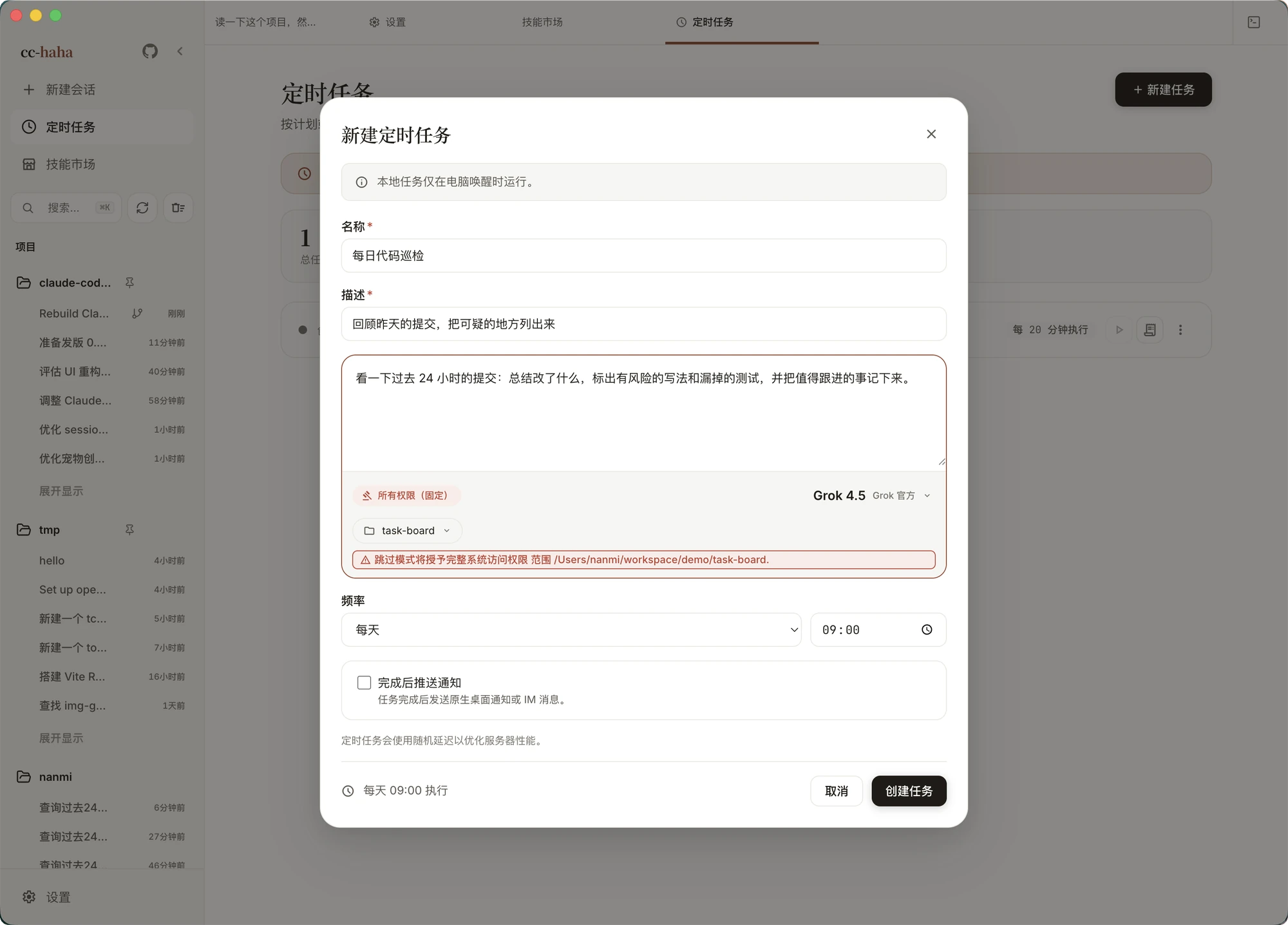
- Name (required) — the identifier in the list. A hyphenated form like
daily-code-reviewreads well. - Description (required) — one line about what it does, so you recognize it later.
- Prompt — what actually gets sent to Claude. Give it the full context: what to look at, what to care about, what format to output. You won't be there to clarify.
- Permissions — fixed at Full permissions (fixed); the form doesn't offer a choice. The prompt editor shows the directory scope of the run right below. So: pick the narrowest possible working directory, and read your own prompt once before saving.
- Model — set per task, independent of your session default. Routine checks are fine on a cheaper model.
- Working directory — where the task runs. You can also enable Isolated worktree so the task works in a separate Git worktree and never touches your main branch.
- Frequency — every N minutes, every N hours, daily, weekdays (Mon–Fri), specific days, monthly, or a custom cron expression. Time-of-day options get their own picker beside the frequency. Custom cron is "minute hour day month weekday" and invalid expressions are flagged as you type.
- Push notification on completion — pick channels: native desktop notifications and any IM channels you've configured. If no IM channel is set up, the form points you to Settings → IM Adapters; setup steps are in Phone (H5) and IM.
Desktop notifications need System Notifications enabled in Settings → General and permission granted at the OS level.
Tasks fire with a small random delay so a dozen jobs don't all start on the same tick.
Once it's running
Each task card offers:
- Run now — don't wait for the next trigger. Do this once right after creating a task to confirm the prompt works.
- Logs — the execution log, one row per run, with status (running, completed, failed, timeout) and duration. Summary shows the output excerpt; View conversation jumps to the full session for that run.
- Edit — change any field, including the frequency.
- Disable / Enable — pause without deleting.
- Delete — removes the task and all of its logs permanently.
The three numbers at the top of the list are total tasks, active, and disabled.
A few habits worth having
- Run it manually before setting a frequency. Prompt problems show up on the very first run.
- Keep the working directory narrow. The task runs with full permissions, so the directory is its boundary.
- Don't schedule it too tightly. A task that runs every minute burns tokens fast and floods the log.
- Ask for a conclusion, not a transcript. Put "summarize in three lines at the end" in the prompt, or the notification will be unreadable.